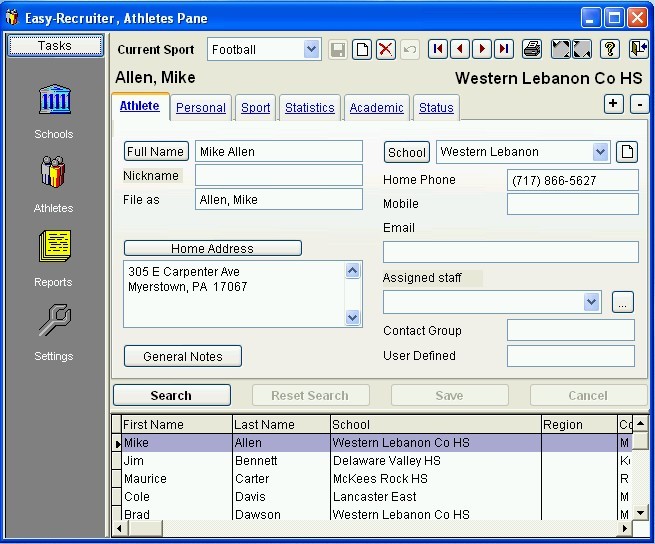
The athlete pane is a task area of Easy-Recruiter accessed by the

icon on the
Task Bar. This area is a dual interface pane with an
Adjustable Splitter Bar dividing the control panel window in the upper half of the pane from the list of athlete grid down below.
You can click on the adjustable splitter bar and drag the dividing line between the upper and lower windows of this pane to optimize your
viewing area.
Athlete Control Panel The upper window of the schools pane includes a control panel that organizes contact information of three pages. Click on a tab along the top of the control panel to view each page (Address, Contacts, or Coaches).
Use this pane to
Maintain Athletes. The data elements or "fields" for each high school record is organized by tab as follows:
| Athlete Tab |
Name, address, general notes, telephone numbers, and assigned staff member. |
| Personal Tab |
Date of birth, social security number, father and mother contact information, personal notes, and website address. |
| Sport Tab |
Recruited sport and position, player rating, jersey number and color, film ID and date received, other sports played, sport notes, coach, height, weight, and other positions played. |
| Statistics Tab |
Includes various statistics and other details for the recruited sport. The fields shown on this tab can be Customized by Sport. |
| Academic Tab |
SAT scores, academic status and interests, academic notes, GPA, ACT score, rank, guidance counselor name, graduation date, and other colleges applied to. |
| Status Tab |
Recruiting status date, contacted by (staff member's initials), status code, campus visitation details, clearinghouse and financial aid indicators, status notes, and date-stamp showing when the athlete was entered. |
Athlete Grid The List of Athletes in the lower window of this pane can be used interactively in the following ways.
- Click on the adjustable splitter bar along the top of the grid and drag up or down to optimize Viewing Athletes
- At the top of each column is a grey field name button that you can click on to sort the list of schools by that field in ascending or descending order.
- Click on the dividing lines between columns and drag (left or right) to stretch or shrink displayed area.
- Click on the field name button at the top of each column and drag the entire column (left or right) and drop into a different position. This allows you to rearrange the display order of the columns shown.
Tips and Tricks for using the Athlete Pane.
- When a school is selected from the drop down list, click on the "School" button to jump to the Schools Pane and automatically the selected school will display.
- You can also use the "New" icon button beside the drop-down list of schools to quickly add a new school record that can then be selected from the drop-down list for the current athlete.
- When an email address is recorded, a small icon button will appear above the email address field. Click on this button to launch your default mail client (if available) and send an email to the recorded address.
- When a web page address is recorded, a small icon button will appear above the field. Click on this button to launch your default web browser (if available) and load the recorded address.
- When adding or editing athlete details, the Recruited Sport will default to the toolbar setting for the current sport. You can select an alternative sport for the current athlete by changing values in the Recruited Sport drop-down list. After changing the Recruited Sport click on the Apply Sport icon button beside this field to display Custom Sport Fields and determine how to classify the athlete's sport details. (Options include: Change Sport or Save Additional Sport)
- Click on the ellipses button beside the Coach drop-down list to Add/Edit/Delete coaches from this pane.
- Plus, the Positions listed on the Sport tab can be Customized by Sport.
See also:
 Athlete Pane