|
|
|
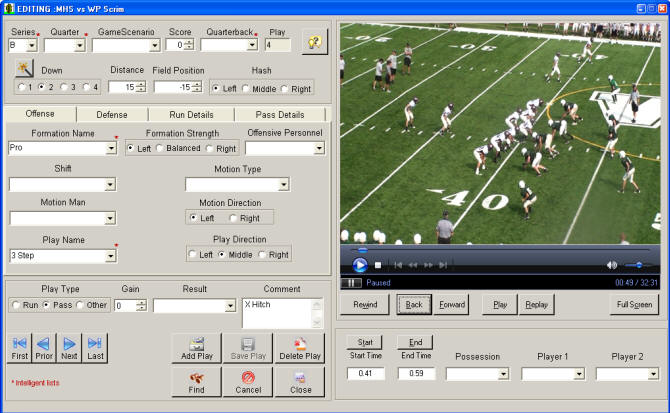
The series of screen shots below illustrate the Easy-Scout Professional Play
Entry and
Video Editing
Screens with all "fields" displayed. Fields are attributes of a
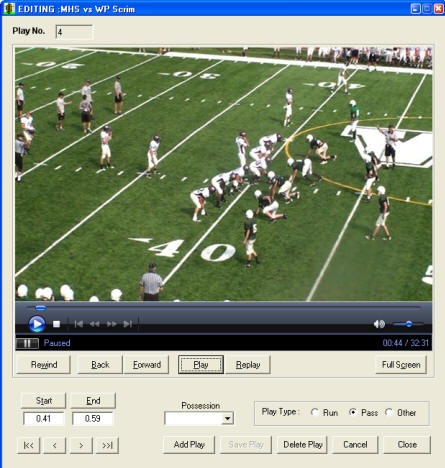
play, such as Down, Distance, Hash, etc. When first installed, Easy-Scout displays all of these fields, or attributes but it is not necessary to complete each one. In addition, it is possible to remove fields from these screens quickly and easily. Easy-Scout Professional includes one "data entry" (scouting data) screen and two "video editor screen" - the difference being the Video Editor screens have a video player. This design offers maximum flexibility and convenience for coaches who occasionally need to produce tendency reports from games scouted "live" or "broken down" by another coach "on paper".VIDEO EDITING SCREENS Easy-Scout Professional includes two Video Editor Screens, shown directly below. Video Editor screens include video "players" with controls for viewing and "cutting" the video. Video Editor screens also make it possible to record "scouting" data about a play while watching the video of that play. Data recorded with a play can be used to control (scouting) data analysis and reporting, video analysis and cutup production. Both Video Editors can "toggle" between standard and full screen playback and include a "slider" that makes it easy to locate a specific place in a game while viewing the video at the same time. "VCR" button controls such as Play/Pause are complemented by a row of special buttons that make it possible to "step" back and forward, rewind and fast forward. A "replay button" that starts a play at the beginning (or end of the previous play) and then pauses it at the Stop Marker is ideal for viewing plays repeatedly. Playback Speed can be controlled with the same Control Keys that are used in Windows Media Player.
Ideal for watching video, performing simple ODK cuts, or linking plays to video from a second camera
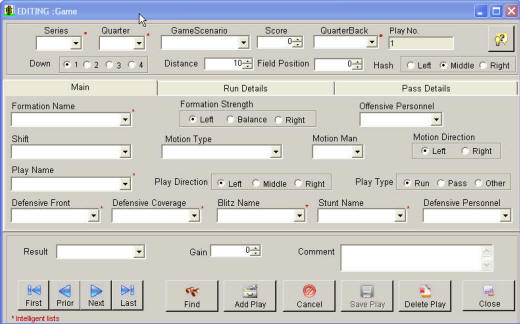
Video Controls include Start and End "buttons" that make it easy to identify the beginning and end of a play with a "click of the mouse" - even while the video is running! A "possession" data item (included on both Video Editors) can be "customized" to include any number of possession types, such as ODK (Offense, Defense, Kicking) or to further break down kicking into Punts, Punt Returns, 2- point plays, etc. The Possession item utilizes a special type of "intelligent default" that speeds up the editing process. Easy-Scout Pro's "main" video editor adds a full set of data collection capabilities for things like Down, Distance, Hash, Formation, Play, Defensive Front, Defensive Coverage, etc., and makes it possible to quickly identify a play for individual players (or for the team, offense, defense, special etc.) for inclusion in a highlight video. The "main" video editor can be used to edit the entire game, or in conjunction with the Quick Cut Editor to perform detailed analysis of plays after a game is "cut" into Offense, Defense and Kicking using the Quick Cut Editor. SCOUTING (DATA ONLY) MODE SCREEN Using the "Play Entry" or "data-entry" screen shown below, Easy-Scout Professional operates in "scouting mode" - no video player is shown. A game can be "scouted" by entering plays that were "charted" on a form or on a play card, and tendency reports can then be quickly produced. The "data-entry", or "data-only" screen is particularly useful when time or logistical constraints make it impractical or impossible to transfer video to the computer or "tag plays" for all games on an opponent. Once the data is entered in "scouting mode", its possible (and easy) to "connect a video file and then associate one or more plays with its video..
The screen has one fewer "screen tabs" than the Video Editor screen, combining the main Offensive and Defensive "fields" on the same screen. |
|
|
|
|