You can manage the database engine settings in Easy-Recruiter from the Settings Pane using the System Control Panel in the lower portion of this area.
To View/Edit Advanced Data Settings:
- Launch Easy-Recruiter and Login as a System Administrator User.
- Select the Settings Icon from the Task Bar.
- Select the Data Tab in the lower control panel to display the screen shown below.
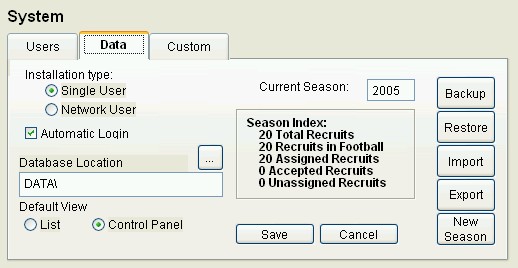
- Installation Type allows you to specify if the database is running in Single User or Network User mode.
- Automatic Login is available to override the Login screen on startup if you are running in Single User mode.
- Database Location is used when running in Network User mode to specify where the central database is installed on the local area network.
- The View preference can be specified in the lower left corner to indicate default grid behavior when Viewing Athletes and Viewing Schools. Select List to maximize the viewing area for the List of Athletes/Schools in the lower window. Select Control Panel to maximize the viewing area in the upper window.
- remember to click the Save button on the Data tab of this control panel to record your changes.
- The Current Season has a database label to indicate the current recruiting year for all Users.
- The Season Index lists the current database statistics.
- Use the Import, Export, and New Season Reset buttons on this tab to retrieve, transfer, and/or archive database entries.
- Use the Backup and Restore buttons on this tab to store or retrieve a complete system archive.
See also:
 Advanced Data Settings